Automated Installer & Updater
The easiest way to install or update GnomeLngSwitcher. It detects your CPU architecture, installs the latest binary and GNOME extension, and restarts the background service:
curl -fsSL https://raw.githubusercontent.com/OleksiyM/LinuxLngSwitcher/main/install.sh | bash
💡 Note: If you haven't added yourself to the input group yet, run sudo usermod -aG input $USER and log out once.
Install Required Libraries
Make sure you have GTK4 and Libadwaita development packages installed on your Linux system:
- Ubuntu / Debian:
sudo apt update && sudo apt install -y libgtk-4-dev libadwaita-1-dev build-essential pkg-config
- Fedora:
sudo dnf install -y gtk4-devel libadwaita-devel pkgconfig
Grant Keyboard Event Access
To capture standalone control keys, the utility needs read permissions for keyboard events in `/dev/input` without requiring `sudo`:
- Add your user account to the system
input group:
sudo usermod -aG input $USER
- Log out of your desktop session and log back in (or reboot) for the permissions to take effect.
Enable D-Bus Layout Helper
Modern GNOME Shell blocks programmatic layout switches by default. We install a tiny GNOME extension helper to act as a bridge:
- Run GnomeLngSwitcher settings:
./gnome-lng-switcher
- In the Access & Daemon Status category, find GNOME Extension Helper and click "Enable Helper".
- Log out and log in once more to load the GNOME Shell helper extension into session memory.
Start Layout Switching Daemon
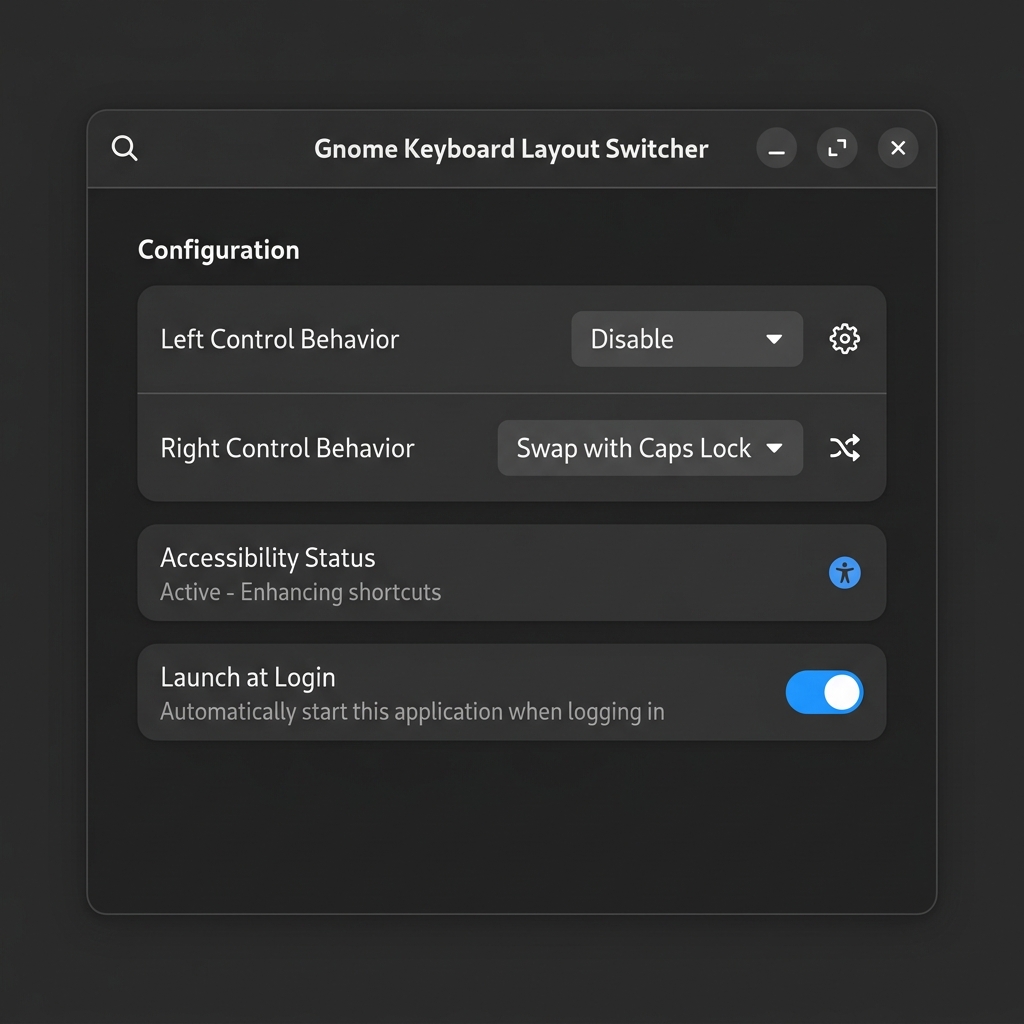
Run the app settings window again to start the daemon process and toggle preferences:
- Launch GUI:
./gnome-lng-switcher
- Ensure all status indicators show green (Accessibility Access and GNOME Extension Helper are active).
- Configure layout assignments for Left and Right Control keys.
- Click "Start Daemon" to activate background keyboard interception.
- Toggle "Launch at Login" if you want layout switcher to launch silently during PC boot.